
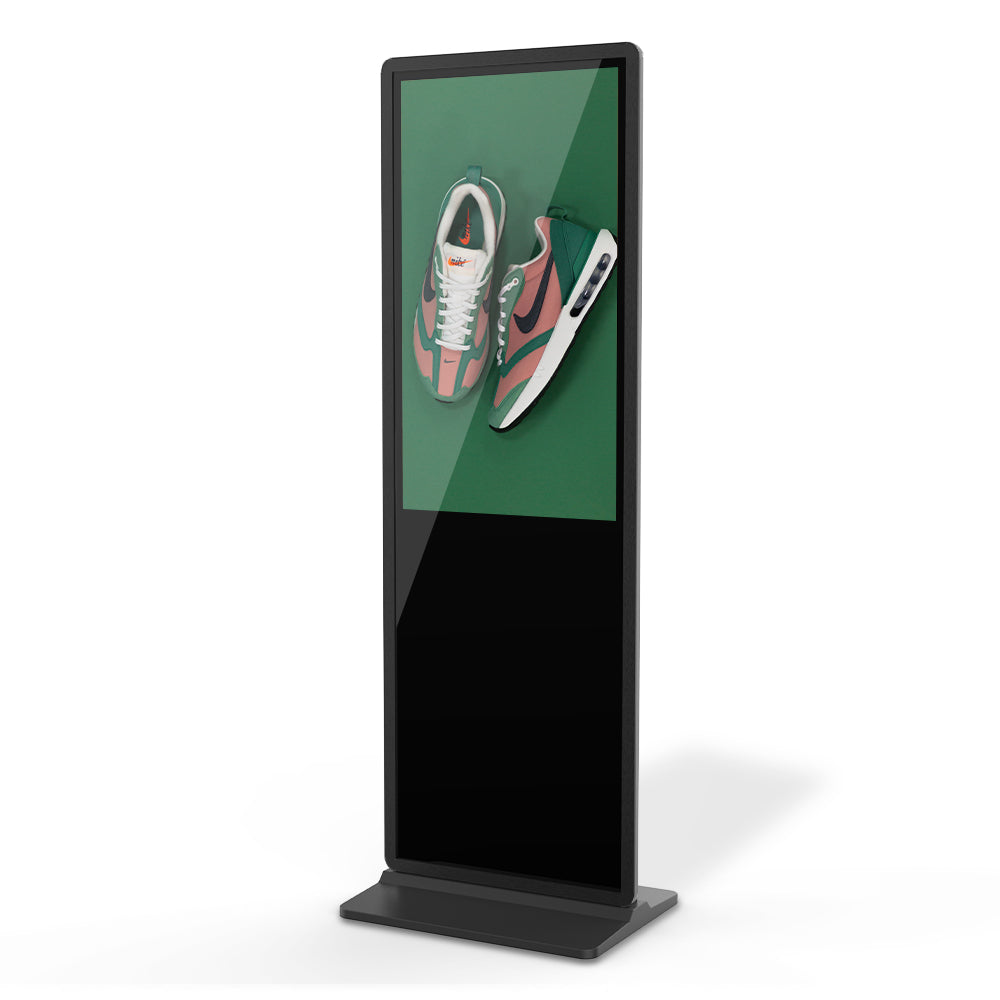
Official front view of an MWE floor-standing digital signage display. Image: MWEdisplay.
The screen is on. The picture appears, stays for a few seconds, and then disappears. The display reports no signal.
It is easy to blame the screen because that is where the problem becomes visible. Yet the picture is the final result of a signal path. A computer or media player has to keep producing video. Any dock or adapter has to pass it through. The cable has to carry it. The display has to stay on the intended input and accept the incoming format.
The brief appearance of a picture is useful evidence. At least part of the connection worked for a time. Instead of asking only why the screen is black, ask which link stops carrying the signal after the picture appears.
Start with the source
A laptop, desktop, or media player can remain powered while its video output changes state. Windows has screen and sleep timers, and a presentation computer may switch display modes or enter a power-saving state after a period without input.
Keep the source’s own screen visible while the external picture is running. Note whether the source changes state at the same moment. On a Windows device, check the screen and sleep timers. If the source is connected through a dock or adapter, test a direct connection when the available ports allow it.
This step does not prove that the source caused the dropout. It keeps the diagnosis open while upstream behavior is still unknown.
Change one link and repeat the same scene
Microsoft’s external-monitor guidance recommends basic isolation checks: secure the cable, disconnect accessories such as docks and adapters, try another cable, and test the display with another system. The point is to change one element at a time.
If the picture remains stable with another source while the display input and cable stay the same, attention moves upstream. If the original source works with another cable, the first cable deserves closer inspection. If several sources fail on one input but work on another, the input path becomes more relevant. Each comparison is useful because the rest of the setup has stayed unchanged.
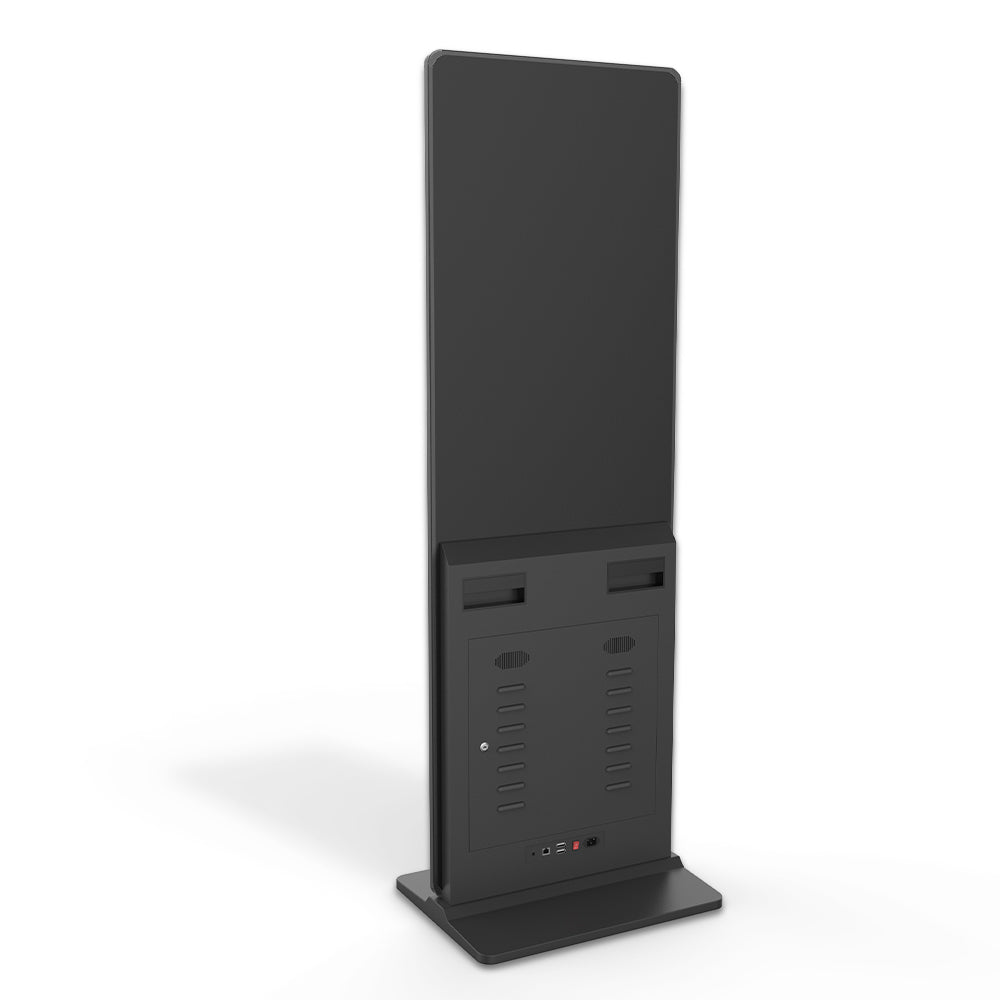
Rear view of the MWE floor-standing display and its external connection area. Image: MWEdisplay.
Record the full sequence in one video: the source already running, the cable connected, the input selected, the picture appearing, and the picture disappearing. A clip that starts after the screen has gone black loses the transition that may help the support team compare the behavior.
MWE’s Help Center follows the same sequence-first approach. It asks owners to identify the display model, inspect external power and signal connections without opening powered equipment, and record one continuous video from power-on through the point where the issue appears. It also asks for the order information and product or package labels needed to match the correct support guidance.
The current MWE floor-standing signage page lists Android playback, USB input, HDMI input, and support for an external player box. Those are distinct playback paths. A working built-in player does not by itself prove that an external HDMI source, adapter, cable, and selected input are working.
Describe the observation before choosing the cause
“HDMI is broken” is a conclusion. “A Windows mini PC shows a picture briefly through this cable and input, then the display reports no signal” is an observation. The second version gives a technician a sequence to reproduce.
Add what happened when one link changed. Note whether built-in playback still works. Include the source model, any dock or adapter, the selected input, the display label, and the order information requested by MWE support. These details can narrow the external signal path without asking the operator to open the equipment or guess at an internal repair.
When a picture disappears after first appearing, record the transition. Then change one external link and run the same scene again. One controlled comparison is more useful than changing several settings at once.
Sources
- MWE Help Center
- MWE Floor standing Digital Signage 32”–65”
- Troubleshoot external monitor connections in Windows
- Power settings in Windows 11
- Original article: If an HDMI Picture Disappears, Follow the Signal Path