
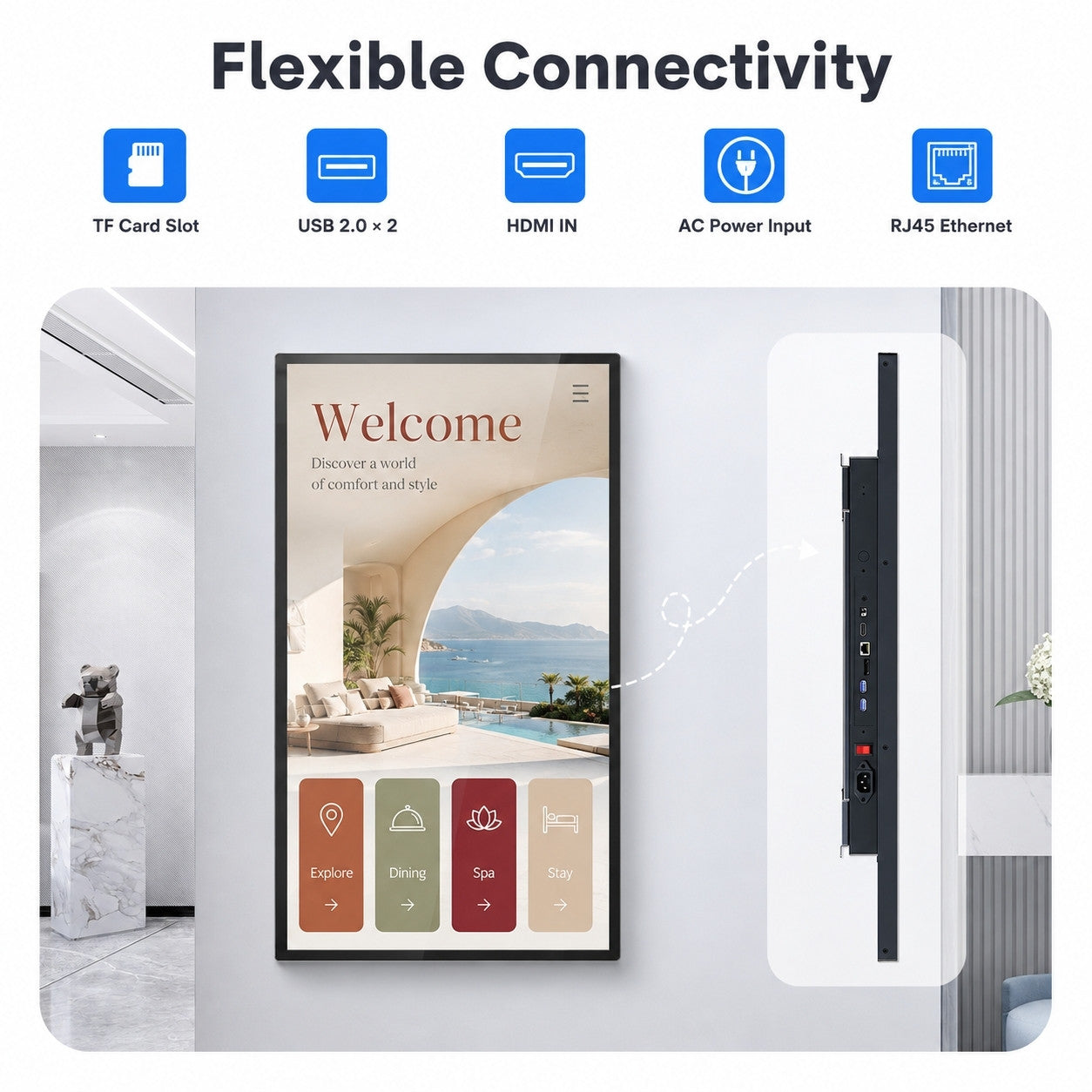
Connection ports on the MWE wall-mount touchscreen. Image: MWEdisplay.
A Windows desktop fills the commercial touchscreen. The picture is sharp, the cursor is visible, and every application looks ready. Then someone taps the screen and nothing happens.
Because the picture is already there, the natural suspicion is a failed touch panel. In many external-computer setups, however, the screen is doing exactly half of the job it was connected to do. HDMI has delivered the picture. The touch data still needs its own route back to the computer.
That route is commonly USB.
The distinction is simple once it is visible: video moves from the computer to the display, while touch coordinates move from the display back to the computer. One cable can succeed while the other is missing, loose, connected to the wrong port, or not recognized by the operating system.
The same screen can operate in different modes
A commercial touchscreen with a built-in Android system can run an app directly on the display. In that mode, the touch layer and the app live inside the same unit, so the external-computer cable path is not part of the experience.
Connect a Windows PC instead and the roles change. The display becomes both a monitor and an input device. HDMI carries the Windows picture into the screen. A USB touch cable carries taps, swipes, and gestures back to the PC.
MWE’s current wall-mount touchscreen product page makes these modes explicit. It describes standalone Android use, a compatible Windows PC, and HDMI with USB touch control. The included-accessories image and text list both an HDMI cable and a USB touch cable. MWE’s public Help Center repeats the operating principle in plain language: video travels over HDMI and touch input travels over USB on supported touch models.
The two cables are not duplicate accessories. They describe the system architecture.
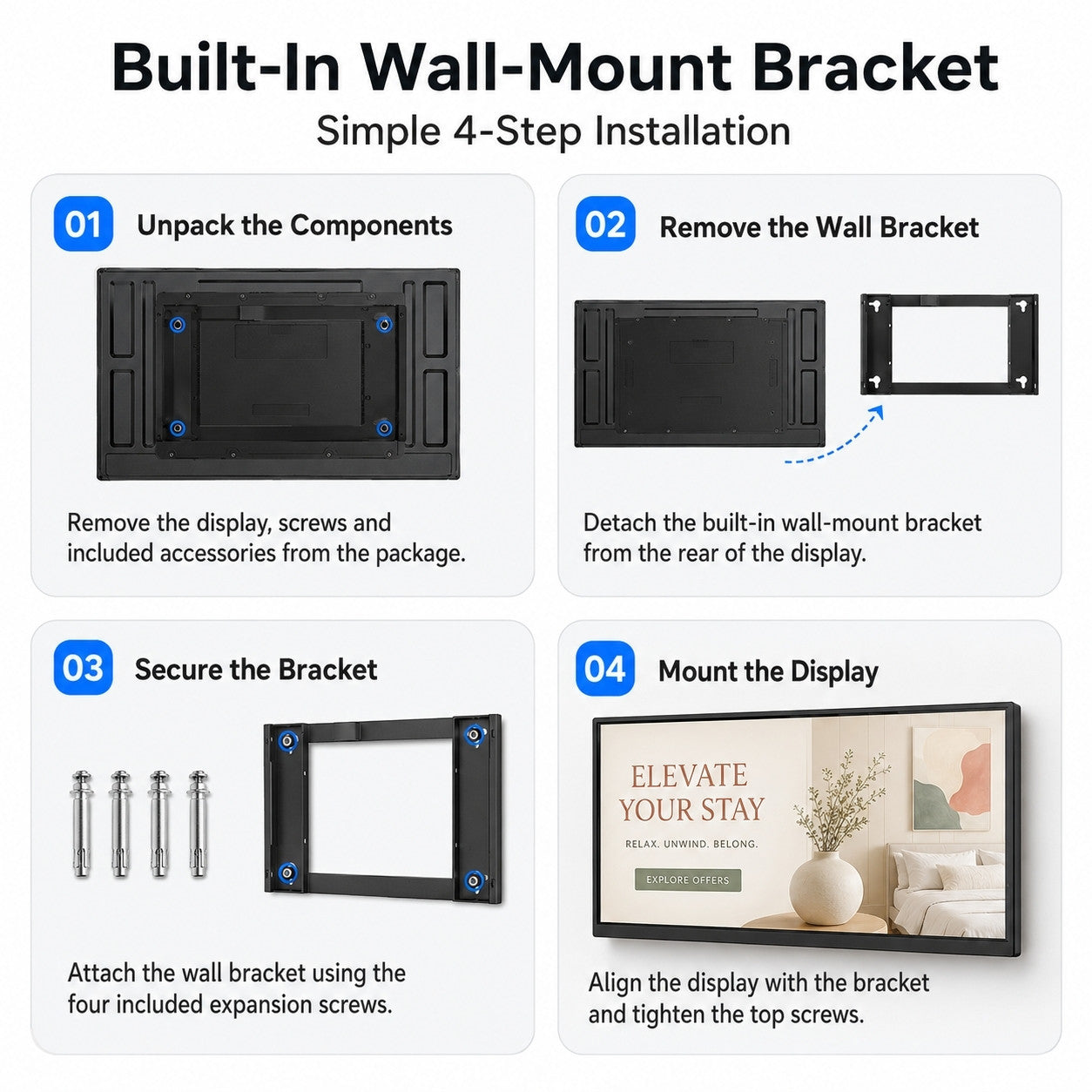
MWE’s published wall-mount bracket installation sequence. Image: MWEdisplay.
The box can teach the installer what to test
Product proof is often reduced to a specification table. Yet an included cable can answer a more practical question than a long feature list.
If a touchscreen ships with separate video and touch-data connections, commissioning needs two tests. First, can the external computer produce a stable picture at the intended resolution? Second, does the computer receive touch input across the full active area?
Those tests catch different problems. A good picture with no touch points toward the data path or device recognition. Touch that lands in the wrong place may point toward mapping or orientation. No picture at all keeps the investigation on the video path. The visible symptom becomes easier to describe because the two jobs are no longer blended together.
This is also why cable labeling matters. An installer may leave a neat cabinet with two identical-looking USB leads, while the person supporting the site six months later has no idea which one carries touch. A small label such as “TOUCH DATA TO PC” turns future troubleshooting into a shorter conversation.
Safe diagnosis begins outside the enclosure
Before anyone opens a display, confirm the operating mode and selected model. Is the app running on the built-in Android system, or is a Windows computer supplying the experience? Is the unit a touch version? Is the USB touch cable connected to the intended computer? Does Windows react when the cable is disconnected and reconnected?
The MWE Help Center keeps internal cable work behind model-specific support guidance. That boundary matters because an external missing cable and an internal touch connection can create the same visible complaint while requiring very different actions.
The useful brand evidence here is modest but concrete. MWE publishes the operating modes, shows the ports, includes the two relevant cables, and explains the direction of the two signals. That gives buyers and installers a clearer mental model before a problem occurs.
During commissioning, label the HDMI and USB touch cables and test picture and touch as separate paths. The installation is not finished when Windows appears on the glass; it is finished when the glass can talk back.
Sources
- MWE wall-mount touchscreen
- MWE Help Center
- Large Touch Screen Monitor Guide: Choosing the Right Size for Digital Signage
- Original article: Why a Windows Touchscreen May Need Two Cables
Continue reading
How to connect a supported MWE touchscreen to a Windows PC
Use the HDMI and USB touch connections identified in your model's guide to carry the picture and touch input between the display and the same Windows computer.
Confirm the model and operating mode
Check the model's connection guide and identify its HDMI input and USB touch port. Select the external Windows-computer setup described in that guide.
Connect and check the picture
Connect the computer's HDMI output to the display's HDMI input. Select that input on the display and confirm that the Windows desktop appears at the intended resolution.
Connect the USB touch path
Connect the display's USB touch port to the same Windows computer using the USB touch cable. Check that Windows recognizes the connected touch device.
Test touch and label both cables
Tap the center and corners of the screen and check that touch reaches the intended display in the correct position. Record any picture or touch symptom separately, then label the HDMI and USB touch cables for future support.