
The worst time to discover a Bluetooth problem is ten minutes before doors open.
The booth is assembled. The client is looking at the clock. The iPad is on the stand, the light is on, and somebody says the sentence every operator hates: the app cannot find the device.
A photo booth Bluetooth connection checklist is a short pre-event routine for confirming phone or tablet permissions, hardware power, device naming, pairing state, app version, and restart order before the operator starts swapping cables or blaming the venue.
Why Bluetooth failures feel random on event day
Bluetooth issues feel random because several layers have to agree at the same time. The phone or tablet must allow the app to use Bluetooth. The hardware must be powered and discoverable. The operator has to choose the right device, not the DJ speaker or somebody else’s booth nearby. The app also needs the correct workflow for the hardware being controlled.
Apple states that iOS and iPadOS apps must ask permission to use Bluetooth functions, except for playing audio to a Bluetooth device. Android guidance treats Bluetooth access as a permissioned capability, with Android 12 and later using Nearby devices permissions for scanning and connecting.
If the booth worked in the office but fails at the venue, permissions and device state deserve attention before deeper troubleshooting.
Check permissions before touching the hardware
Start with the device in your hand.
On iPhone or iPad, check Bluetooth access for the app under Privacy and Security settings. If the operator denied access during a rushed first launch, the app may not be allowed to scan even though Bluetooth is turned on. On Android, check that the required Bluetooth or Nearby devices permission has been granted.
Then check the basics that are easy to miss under pressure. Turn Bluetooth on. Turn off airplane mode. Confirm the app is the current official version. Close other apps that might already be holding the device connection. If the venue has several booths, test from a short distance first so the correct hardware appears clearly.
Confirm the exact device role and device name
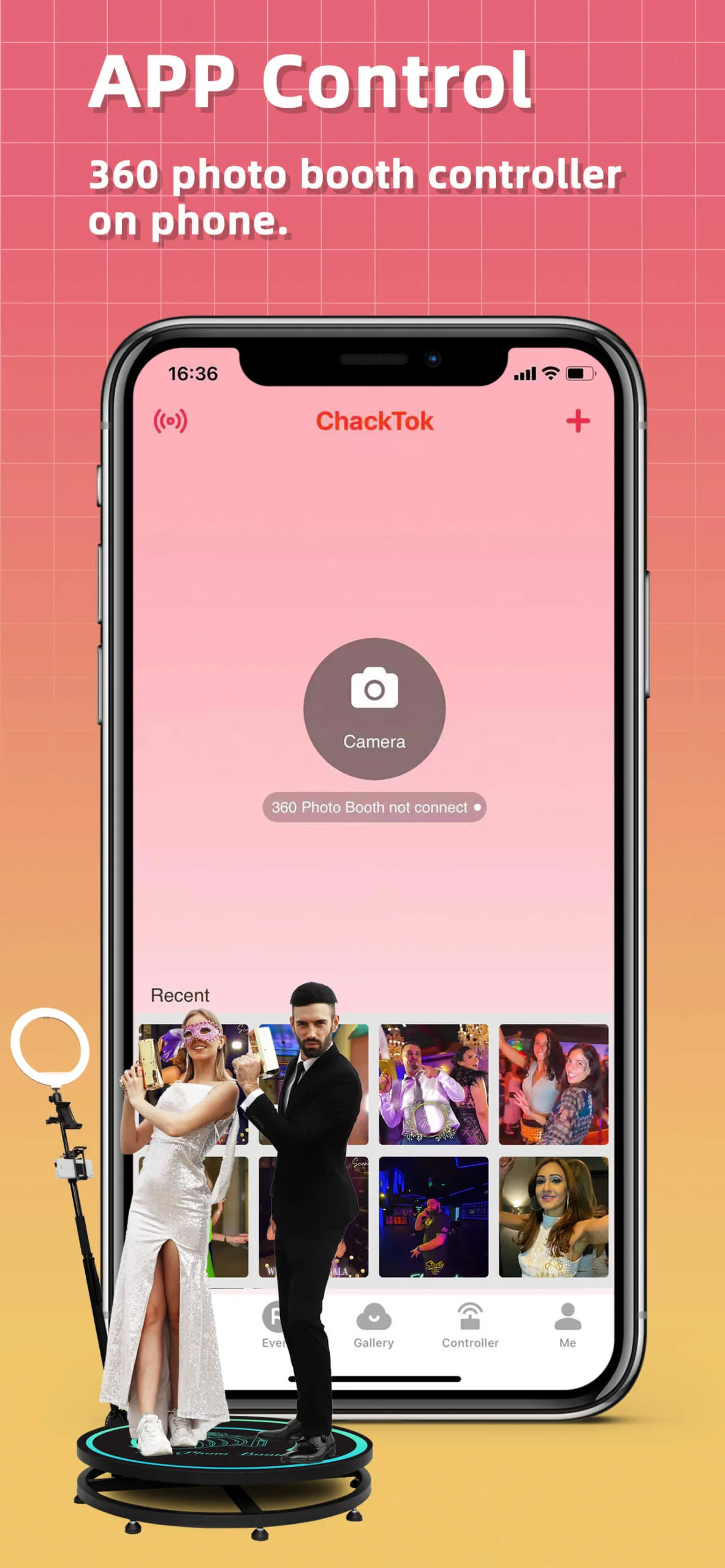
A support FAQ mirrored in Notion for an iPad Photo Booth Big Light Box model notes that the ring light can be controlled through the included remote, manual knobs, or Bluetooth control through ChackTok, and that the Bluetooth device name is Ring_light for that model. It also clarifies an important boundary: ChackTok controls the ring light on that model, not a motor.
That kind of detail matters. A photo booth operator cannot troubleshoot a connection well if the crew is not clear about what the app is supposed to control. Is the app controlling a ring light, a spinner motor, a robotic arm trigger, media output, or an event workflow?
Before the event, write down the expected device name and the expected control role.
Reduce nearby noise and restart in the right order
Venues are crowded radio environments. Phones, speakers, tablets, payment devices, LED controllers, and guest wearables all compete for attention.
Use a simple restart order. Power the booth hardware off. Fully close the app. Reopen Bluetooth settings and remove stale pairings only if the manual recommends it. Power the booth hardware on, wait for it to become discoverable, then open the app and scan from close range. If the app finds the device, move the tablet back to its operating position and test the actual action the event needs, not just the connection screen.
How ChackTok fits the operator workflow
ChackTok is a professional software system for event imaging workflows, including photo booth, 3D scanning, robotic camera arm, image processing, content output, and sharing tasks supported by its official materials. For normal operators, the brand matters when the software reduces setup friction and keeps the booth workflow moving.
That does not mean every Bluetooth issue is a ChackTok issue. The phone operating system, device permissions, booth hardware, model-specific control role, and venue environment all play a part. The clean operator habit is to test the official app, correct permissions, expected device name, and actual output before the client sees the booth.
FAQ
Q: Why is my photo booth app not finding the Bluetooth device?
A: Common causes include missing Bluetooth permission, disabled Bluetooth, the wrong device name, hardware not being discoverable, another phone already connected, or venue interference.
Q: What should I check first on an iPad photo booth?
A: Check that Bluetooth is on, the app has Bluetooth permission, the official app is installed, and the expected booth device is powered and close enough to scan.
Q: Does ChackTok control every hardware function on every booth?
A: No. The supported function depends on the model and setup. For one iPad Photo Booth Big Light Box FAQ, ChackTok controls the ring light through the Bluetooth device name Ring_light, not a motor.
Q: Should I pair the device in system Bluetooth settings or inside the app?
A: Follow the product manual or official setup guide for the specific model. Some workflows scan and connect from inside the app after permissions are granted.
Q: What is the best pre-event habit?
A: Test permissions, device name, connection, and the real event action before guests arrive.